

Booost's biggest update has landed
A faster way to add, prioritise, and get started.





See the new Booost in action
Using Booost yourself?
Update (iOS) or download (Android) the new version - your account and data carry over automatically.
Recommending Booost to others?
No changes needed. Join a short webinar to see what’s new, or let us know if you need a demo licence to so you can try the latest updates yourself.
Home screen
Ready for the day ahead
Booost has always put your current or up next event on the home screen so that see the most important information the moment you open the app. But, what was missing was where the event was taking place. Which is pretty useful to know! So we made a small tweak to add that to the event card on the home screen.


A much bigger change is that your most important task is now also shown on the home screen. Open Booost → see what you need to be working on → get to it.
That’s the flow - no decisions, no friction, just action. But, just in case you need another option, you can switch to see the next most important task to make sure you’re focussing on what’s needed.
Plus, knowing what to do is good. Knowing the first step to start with is even better. So, if you have a task with a checklist added, the first unchecked step is displayed in the task card.
Quick Add
Get things into Booost fast
Adding tasks and events into Booost took too long - to the point that you could easily forget the thought you were trying to add.
That needed to change. First step was to add the Add button to the centre of the mobile navigation bar so it was always in the same place, wherever you are in the app.
Then we changed the whole add task and event flow so that you can now add something in three steps - tap add, type something, save it. Get something from your brain into the app in seconds. But, if you want to add more information, just tap the expand button and go for it, or open it up later and refine then.
Whatever works in the moment.


Checklists
More flexibility, more useful
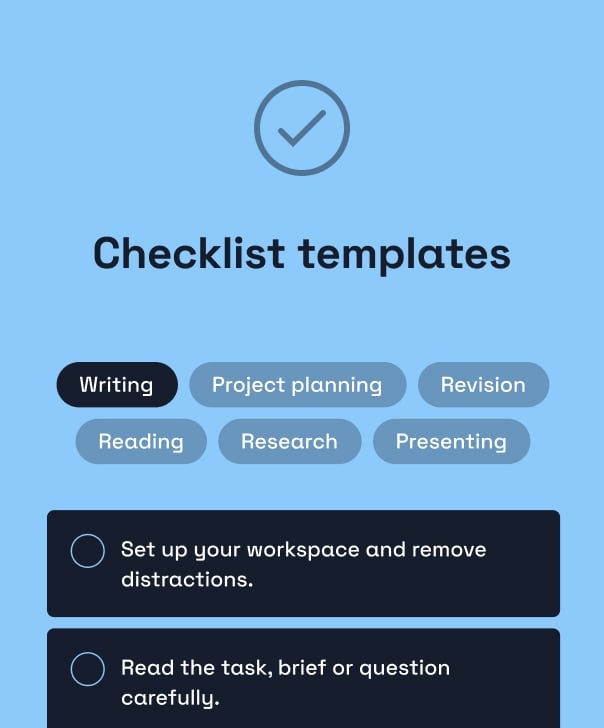
Checklists have always been a key Booost feature, and that hasn’t changed.
What has changed is that now you can choose which checklist to add, rather than having one automatically added based on the task or event type.
Why that helps - firstly, it means you can add tasks and events much quicker (see above). And secondly, it puts you in control by letting you choose the checklist that is most helpful.
You can also still create your own checklist, edit existing ones or, if you’ve created a task with a custom checklist that you want to reuse, you can now duplicate the whole task.
Tasks
Organised from the start
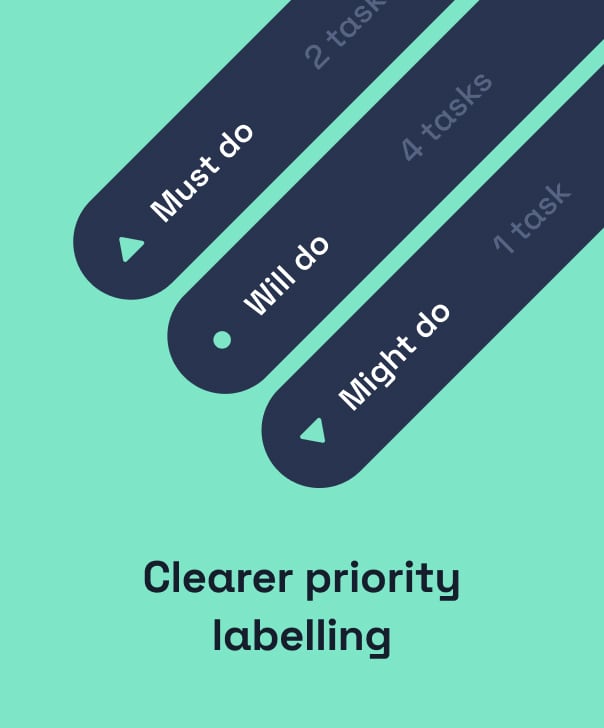
We've switched the priority labels to Must do, Will do, and Might do. Why - well, we felt that the old labels (high, medium, low) were too abstract to actually help. The new labels help work out what are the key things to tackle (Must do), what do you then need to do next (Will do), and what gets done when you can get round to it (Might do).


In addition to be able to choose to see tasks in order of priority or due date, we’ve added some more options to customise your task list. Filters give you options to only show tasks with specific priority levels, or task due within specific date ranges. Plus, you can now sort tasks in the list by date added or due date.
Lots of options and once you land on the view that works best for you, Booost remembers it the next time you open it.
We changed the Reach Out feature not long ago, switching it to a way of letting someone know you're working on a task – because having someone else aware of what you're doing can help you get started.
We’ve now made some further changes so that you can share what you are working on via any messaging app you choose, rather than just by sending an SMS message. So whether WhatsApp, Snapchat, SMS or even email is your thing, you’re covered.


Calendar
Small change, less stress
A missed clash is stressful precisely because you find out too late to do anything calm about it. So when events overlap, Booost now surfaces it clearly as soon as it happens, with simple options to resolve it.
Account settings
Let there be light
We love Booost's moody colour palette. But it's not everyone's thing and sometimes, you’ve got to let in the light (mode)! So now, you can choose between light or dark mode from Account Settings > Display Preferences.


Web app
Saving the best to last
With an all new expandable sidebar menu, weekly calendar view, and Kanban style task view, the Booost app has had a major, and much needed, revamp.
We’ve also integrated the new Reach Out functionality into the web app, so no more need to jump on the mobile app to let someone know you are starting on a task.
Will I lose my data?
I can't find the new app or update — what do I do?
Something isn't working after I updated — help?
Why do Android users need to download a whole new app?
Does anything change for how I recommend Booost to students?
Using Booost yourself?
Update (iOS) or download (Android) the new version - your account and data carry over automatically.
Recommending Booost to others?
No changes needed. Join a short webinar to see what’s new, or let us know if you need a demo licence to so you can try the latest updates yourself.